

Get CodeWarrior and install it. Some steps in the guide may be different depending on the version, but you'll easily figure it out. Don't forget to get ResEdit too.
- Start up CodeWarrior and choose "New Project" from the File menu. Projects keep track all the info for a program that you write.
- Choose the C stationary. By doing so, you're telling CodeWarrior which files need to be included. (quite a time-saver)
- Give the project a name. You want to use descriptive names so that you'll remember what it is after coming back in 5 years from now. NewPanzerGeneral.mcp is fine.
- Choose a location for saving the file. (it is strongly recommended to keep all files related to a project in one folder)
- Press OK. The next dialog asks you what Toolbox to use. Choose 68k, as that will make our programs run on both 68K & PPC Macs.
- You should the floating container with some options. Open the folders. Those are the files of your project. CodeWarrior pre-fills them with some placeholders like SillyBalls.c or SimpleAlert.c. We'll take care of that a little later.
Creating a resource file
- Switch to ResEdit to create our resources file.
- Create a new resource file from the menu.
- Choose a name for it, like NewPanzerGeneral.rsrc and save it in the folder that holds your project. Go back to CodeWarrior.
Integrate the resource file in CodeWarrior
- Click once on the dummy resource file in the floating container (e.g. SimpleAlert.rsrc) in CodeWarrior.
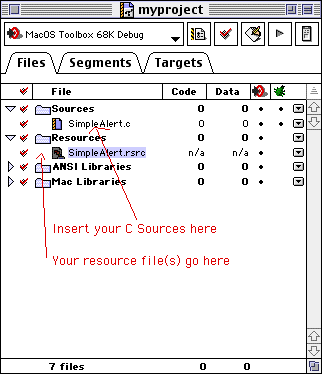
- Now choose "Add Files" from the project menu and pick the resource file you just created with ResEdit. Click on done.
- The resource file should be inserted. You can delete the dummy file now by choosing "clear" (or "remove" - depending on your CW version) from the project menu


Copyright 2026 System7Today.com
.
The Apple Logo, Macintosh, Mac OS, and others property of Apple Computer, Inc.
This site is in no way affiliated with Apple Computer, Inc. |